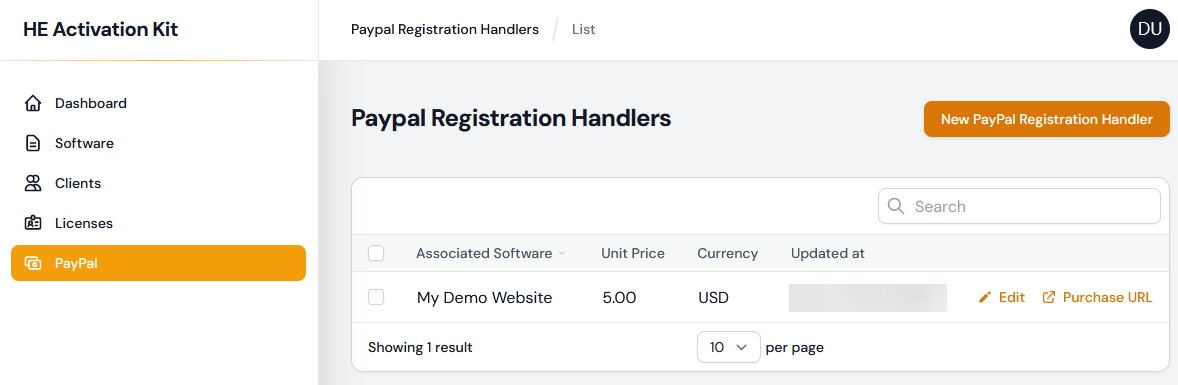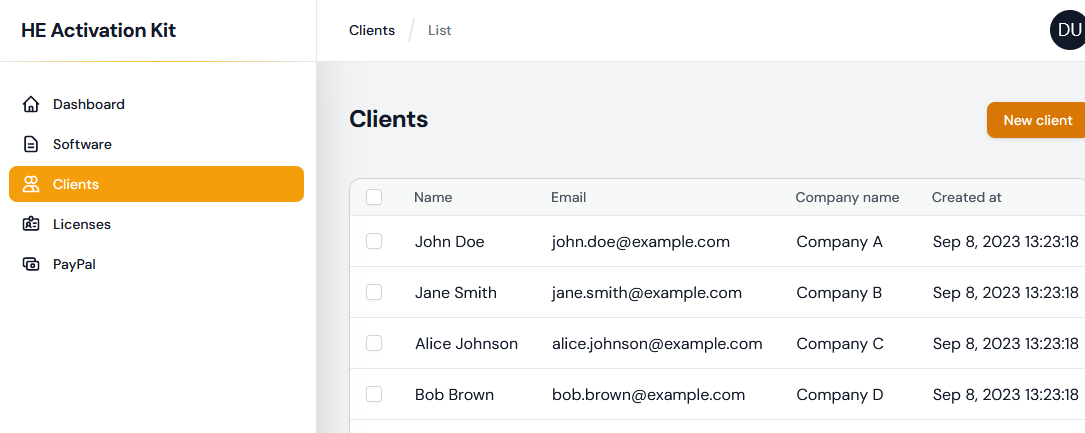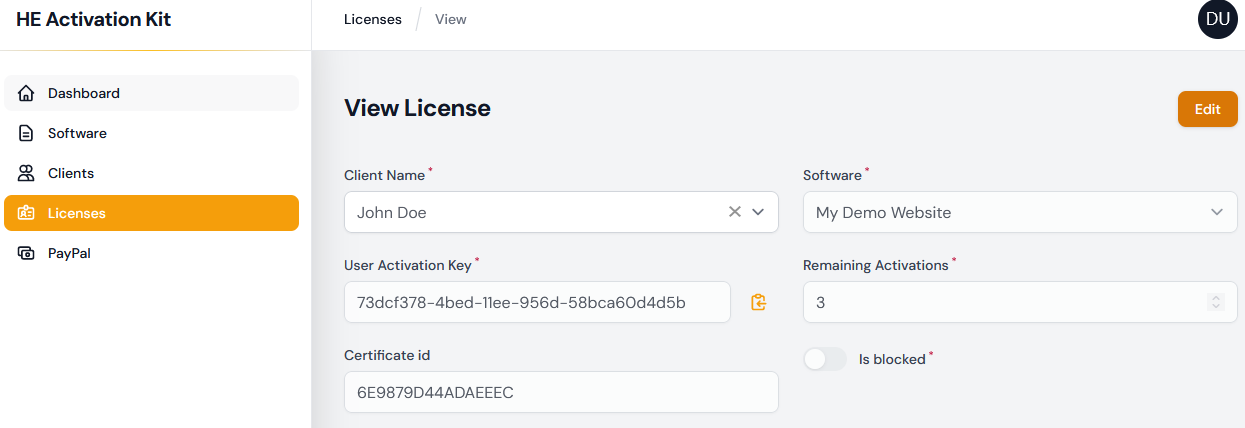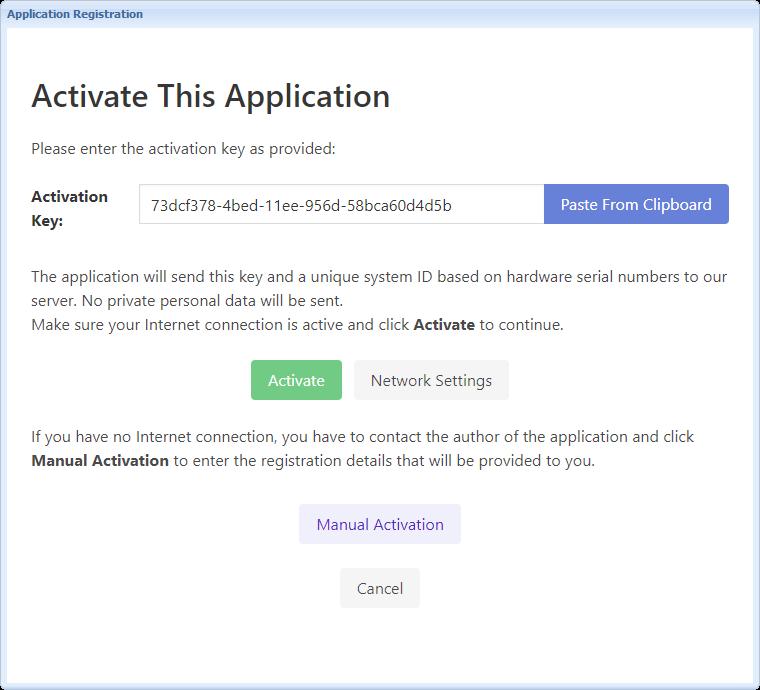
Step 6: PayPal configuration and Buy Now button creation steps to automatically add users to the database

Introduction

The Activation Kit integrates PayPal scripts that automate the addition of new users to the database and delivery of registration keys by email, immediately after a successful order with PayPal.

PayPal is an e-commerce business allowing payments and money transfers to be made through the Internet. PayPal serves as an electronic alternative to traditional paper methods such as checks and money orders.

A PayPal Business account is recommended if you want to use these scripts.

How does it work for the end user?

How to configure the Paypal scripts

STEP 1: edit the "inc/settings.php" file and make the necessary modifications. Especially $script_page should point to the webpage with the "But Now" button.

// URL of directory where script is stored (include trailing slash)

$script_location = 'http://path/to/heakdist/admin/paypal/'; 

// URL of page from where the paypal script is called 

$script_page     = 'http://www.yourwebsite.com/purchase.htm'; 

// URL of the Thank you page (once payment is made, payee is sent to this page by Paypal)

$script_thankyou = 'http://www.yourwebsite.com/thanks.htm'; 

// Various Emails						

The most important step is to configure the settings related to your ebook:

/* Ebook Details

Number = a number associated to your ebook for internal purposes and security check.
		The item ID (item_number) field of Paypal IPN must match this number.
Price = purchase price. Currency set up below.
Certificate ID = the "Unique Certificate Signature" of the registered certificate you want to make a key for.
					See http://help.htmlexe.com/trialtools.htm

product[number] = array('Ebook Title' ,'Price' , 'Certificate ID'); 

*/

$products[1] = array('Peter Pan Ebook','9.95', '8EKzn601IkXH7ip4z');

We added the title of your ebook, its price ($9,95 for instance) and the Unique Certificate Signature we copied previously in Notepad (or that you wrote down somewhere).

Save the modifications to the settings.php file on your server.

STEP 2: if you want to send email instructions, you can configure the mail settings in settings.php (last line with $email_config['protocol']:server mail method, SMTP...) and email.php.

STEP 3: when it is done, open your web browser, navigate to the location of the check.php file (http://path/to/heakdist/admin/paypal/check.php).

check

All tests should be successful. Click Send email to verify that your server can send emails to customers.

You should keep this webpage open as it contains some settings useful for creating the Buy Now button.

IMPORTANT: we recommend you to restrict the access to check.php (password protect it for instance) or simply remove it after use.

Now that the PayPal script is installed and configured, you can create a "Buy Now" button with PayPal.

Make Buy Now Buttons

Go to PayPal and log in. Choose Merchant Services and Buy Now Button.

Fill in the form as shown previously on the check.php page.

The Item ID must match the number that appears between the [] brackets in the $products[1] array variable (in settings.php).

Turn Add advanced variables on and add a variable notify_url that points to the location of the paypal.php file on your server (http://path/to/heakdist/admin/paypal/paypal.php)

Click "Create Button" and you have the bouton code to copy/paste in your purchase webpage.

Now you can make tests with PayPal sandbox for instance.

Customize PayPal scripts

  • The "paypal/inc/settings.php" file contains additional parameters like templates for email messages ($email_subject, $email_body). These templates accept variables: variables are defined in the paypal.php script.
  • The PayPal script by default uses the email address of the customer as the registration key. In fact, an email address is considered as unique and thus we can use it as the identifier (userkey field) of the customer record in the database. You may use your own routine to generate the registration key: take a look in paypal.php at the function named addusertodatabase($name, $company, $certificate, $email, $comments).
  • Keep in mind that the registration key used for online activation has nothing in common with standard registration keys generated by HTML Executable. It is only a unique identifier for the customer's database record.

img Use the administration panel